Tuesday, July 10, 2012

How to remove the "owner" password for your PDF file?

In the net, some of the PDF files are password protected; they can not be copied, printed and so on.  If you want to use it, you must to change it.

 This article will show you a software which can remove the owner password.
It often occur to us that we can not print the PDF files even if we have the right to it. Say you want to print the a PDF file which was made by your colleague who had let the company. Then you can not print it even you have the right. However, if you print the PDF files you do not have the right, please do not use this software. It is illegal and immoral.Then I will show you how to remove the owner password then you can copy, print and change the content of the PDF file on the condition that it is legal.
The software is PDF Password Remover v3.1 which can be used to decrypt protected Adobe Acrobat PDF files, which have “owner” password set, preventing the file from editing (changing), printing, selecting text and graphics (and copying them into the Clipboard), or adding/changing annotations and form fields. Decryption is being done instantly.
  • Know more about PDF Password Remover v3.1.
PDF Password Remover v3.1 is main player to finish the task, so we should visit its homepage to know more about this software. Only if we can know all the functions of this software then we can make full of use it. The more we know about it, the easier when we use it. This is the homepage link:http://www.verypdf.com/pwdremover/
  • Download it.
There are two kinds of versions of PDF Password Remover v3.1, you can choose the one you really need. It also can be used as MS doc execution File. So for the customers who are used to command line, it is also convenient. Run the pwdremover.exe on your computer then you can use it to remove the owner password.
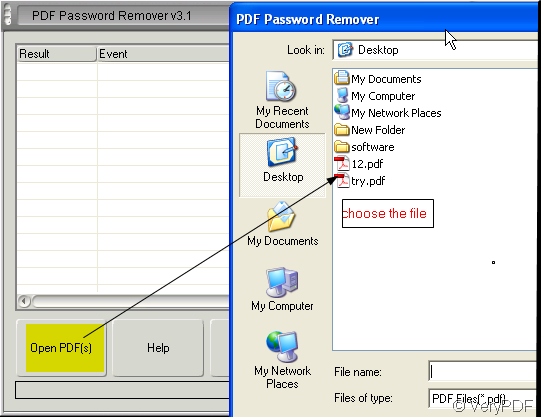
  • Add the PDF file with owner password to it.
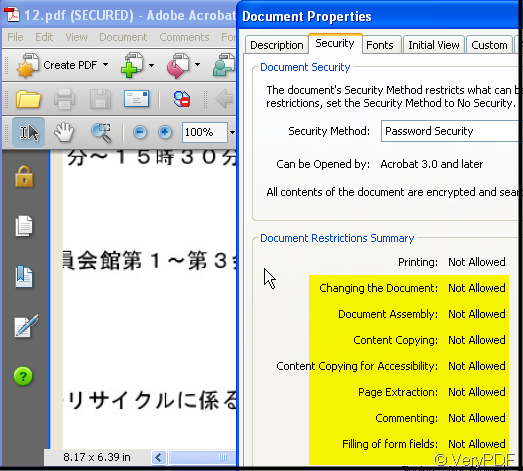
I will take a PDF file with the owner password for example. The example file is limited for many right such as printing, changing and so on so forth. I will add this file to PDF Password Remover v3.1 to remove the owner password.
Snap5
Snap7
  • After naming the new PDF file the owner password will be removed automatically.
It like the picture shows.

Snap6
  • Now through checking the property to know whether the password has been removed.
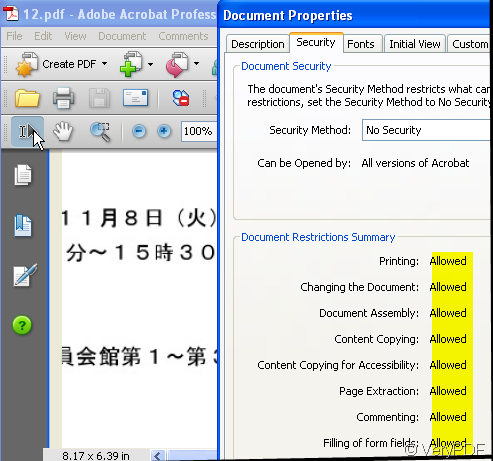
Snap8
By this way, we can remove the owner password. Then no matter copying or printing is not a problem for you.
Matter needs attention. This software is appropriate for the PDF files that have the open password unless you know the password then you can use this software.  Or you can break the password successfully.

Tuesday, July 3, 2012

How to create flip book from PDF files in batches?

This article would like to show you a quick method to convert PDF to flip book in batchesthrough PDF to Flash Flip Book Converter, which is a command line application on Windows platforms.
To know more information of PDF to Flash Flip Book Converter, please go to homepage of PDF to Flash Flip Book Converter. Here is the short introduction of PDF to Flash Flip Book Converter, if you have no time to overview homepage of PDF to Flash Flip Book Converter:
PDF to Flash Flip Book Converter is a command line tool that helps Windows users convertPDF to SWF and PDF to HTML , PDF to JS together through one conversion with command line and optional parameters generally. You can try PDF to Flash Flip Book Converter here for later illustration if you follow, and buy PDF to Flash Flip Book Converter in case you think it is proper (oh, it is very proper and correct for you to choose this decision by the way!).
Here is the description to create flip book files from PDF files in batches through command line:
  • Open command prompt : click Windows + R > input CMD > click OK
  • Refer to the usage and examples to write command line down in created bat file:
Usage:
pdfflip.exe in.pdf outdir [options]
Examples:
d:\pdf2flipbook\pdfflip.exe d:\test1.pdf d:\outdir1 -bc ff0000
(note: -bc ff0000 – edit background color of flip book as “ff0000”)

d:\pdf2flipbook\pdfflip.exe d:\test2.pdf d:\outdir2 -pp A4
(note: -pp A4 – set flipbook page width and height, paper size as “A4”)
d:\pdf2flipbook\pdfflip.exe d:\test4.pdf f:\outdir4 -pagerange 1,4,6,9

(note: -pagerange 1,4,6,9 – specify PDF page range for conversion later)
After you input path of “pdfflip.exe” in command prompt, please drag and drop your bat file containing several command line like above into command prompt, then click enterthere so that PDF to Flash Flip Book Converter offers you plenty of flip books through command line one time!
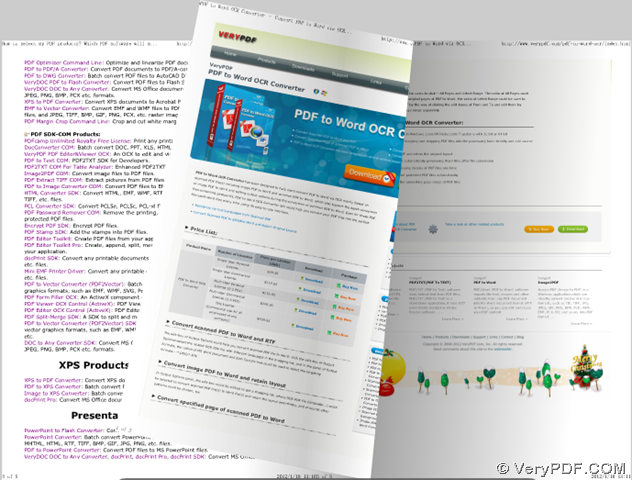
Here is the screen snapshot below:
flip book produced through PDF file via command line
flip book produced from PDF file through command line in batches
After you know how to convert PDF to flip book in batches – PDF to HTML, PDF to SWF through command line in batches, want to know how to make static SWF file from PDF file, then you can go to take a glance at PDF to Flash Converter command line that can only take you several seconds at most!

Convert PDF to Excel file on Windows system

Maybe there are some data contained in a table of  a PDF document and you need to make them save in an Excel file to edit them on your Windows system. But you don’t know which kind of application you can use. 
 The new product of VeryPDF—PDF Table Extractor will help you convert pdf to excel perfectly because it has the ability to extract the data in pdf document and save them as excel file.
To use PDF Table Extractor, please click here to download the application and double click the downloaded installer to open the setup wizard which you need to follow to install the program on your computer. Please see the following contents and you will be able to know how to use this Windows system based application.
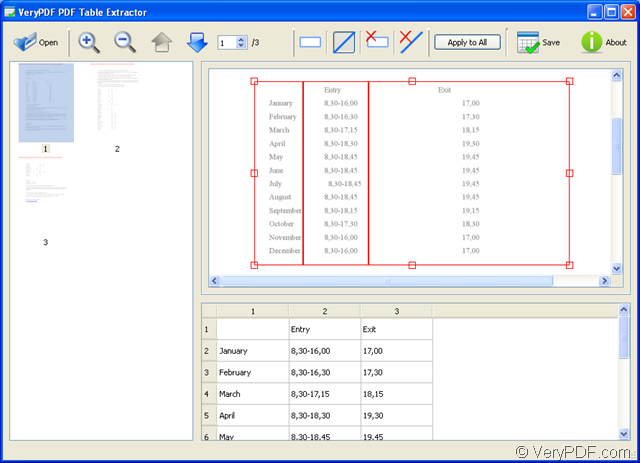
Double click the application or open it through Start menu and you will seen an clear and smart interface of PDF Table Extractor like the one shown in Figure 1. To open PDF document in this program, please click Open button to open the file picker window and then choose the file you need.
interface of PDF Table Extractor
                                                         Figure 1
All the pages of added PDF document will be shown in the preview panel on the left of the interface. When you click any page such as page one, the current selected page will be displayed on the right. To save the data in this page of pdf to excel file, you need to click the button image and then draw a rectangle to select the area that you need. You can drag the rectangle to change its size and location.
All the data will be shown in the box below with only one column and original number of lines. To add the columns, please click the button image and then manually draw vertical lines in the drawn rectangle. As one vertical line added, one table column will add. Another two buttons image and image are used to remove the drawn rectangle and vertical line respectively.
For saving pdf to excel, you need to click Save button to open the window for saving the target file in which you can input the file name, choose target file location and specify the target file format as xls or csv. If you want to apply the current settings to all pdf pages, please click Apply to All button and then save pdf to excel by clicking Save button.
To learn more information about the application PDF Table Extractor, please enter its homepage. You can also leave your gold ideas about this application or our website here or by contacting our support team.